Required Software
First, download DB Browser for SQLite.
NOTE
The current version of DB Browser for SQLite is 3.13.1. Screenshots in this tutorial will show an older version number.
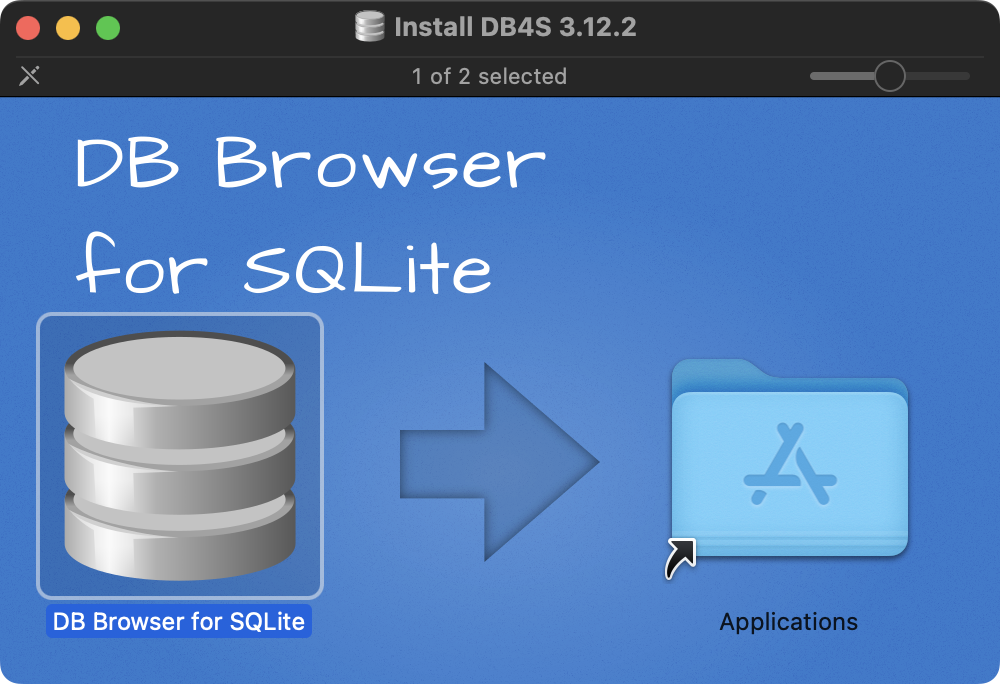
After downloading the disk image file – the .dmg file – double-click it, and then drag the DB Broswer for SQLite application to your Applications folder:
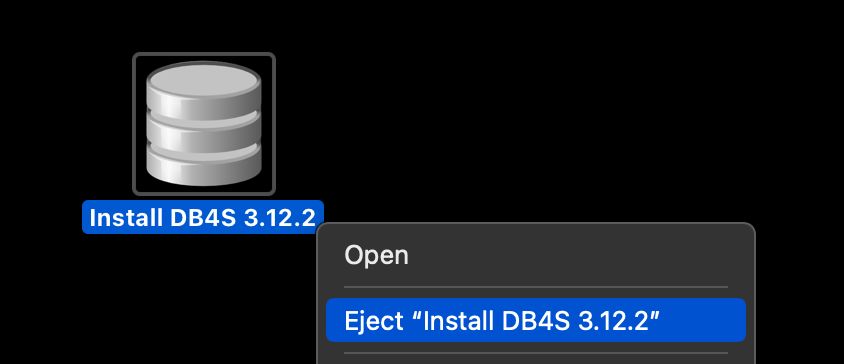
Afterwards, you can then eject the disk image:
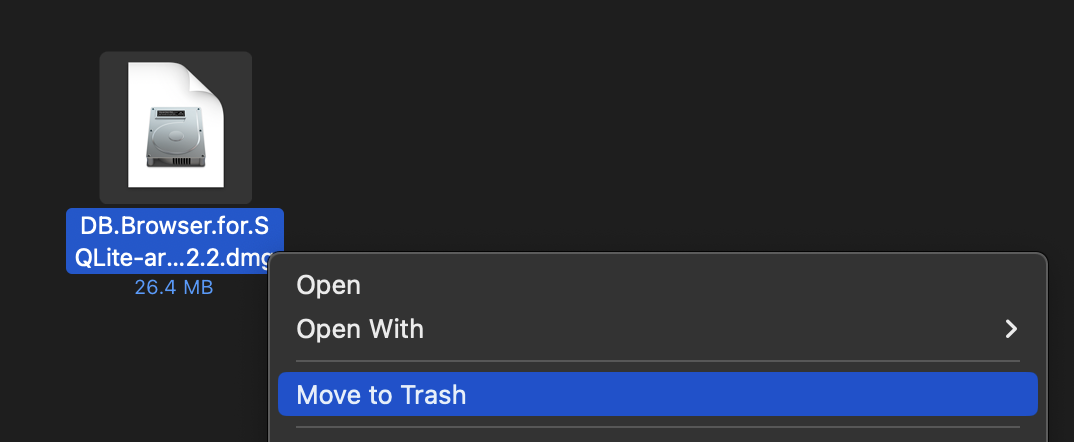
And finally delete the disk image file from your Downloads folder:
Example Database
Next, please download the ‘employees’ database.
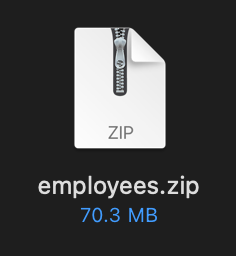
You may need to double-click to expand the compressed .zip file:
Open the employees folder.
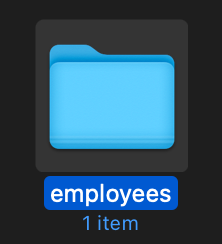
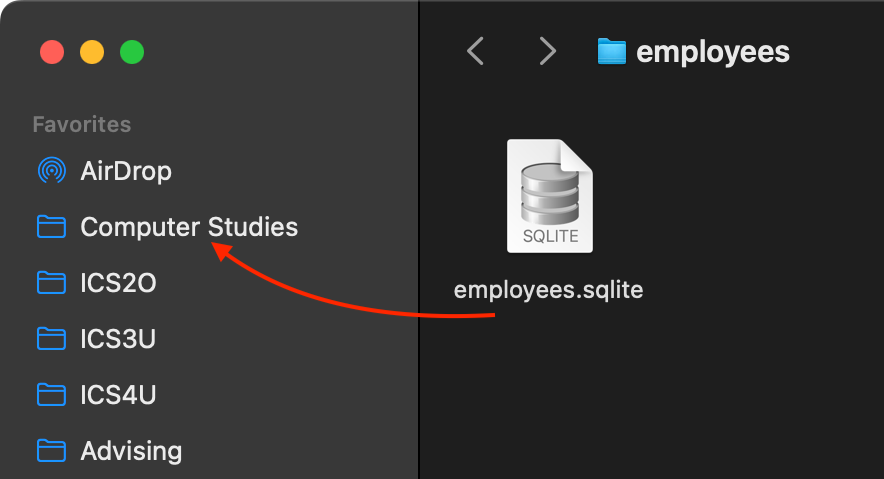
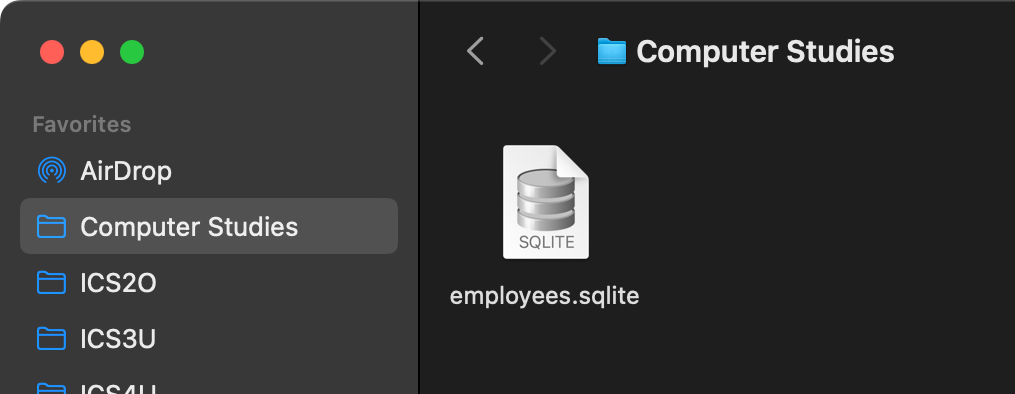
You can then drag the employees.sqlite file to your Computer Studies folder.
Opening DB Browser
First, open the employees database in the DB Browser application by double-clicking the employees.sqlite file:
You will see the following dialog box:
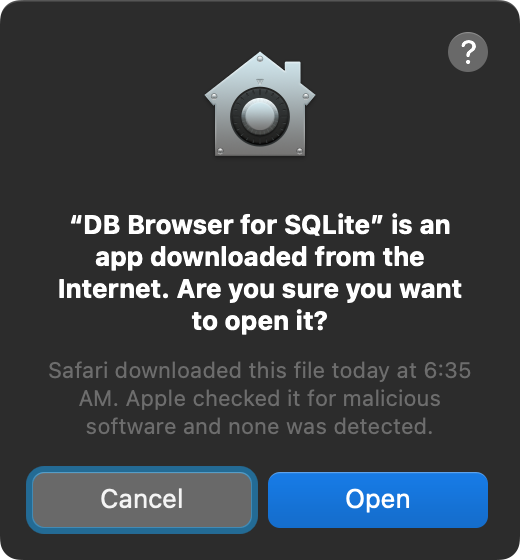
It is safe to open this file, so select Open.
This will happen only the first time you open DB Browser.
You may also see this dialog box:
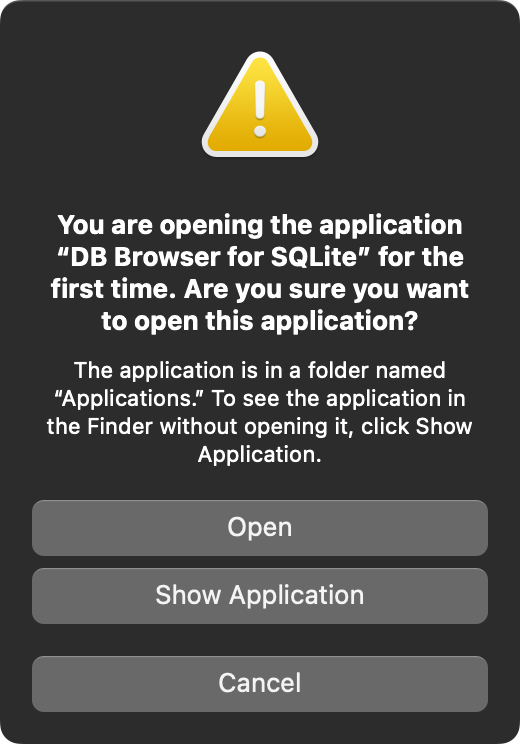
Again, select Open. You should not see this dialog box the next time you open DB Browser.
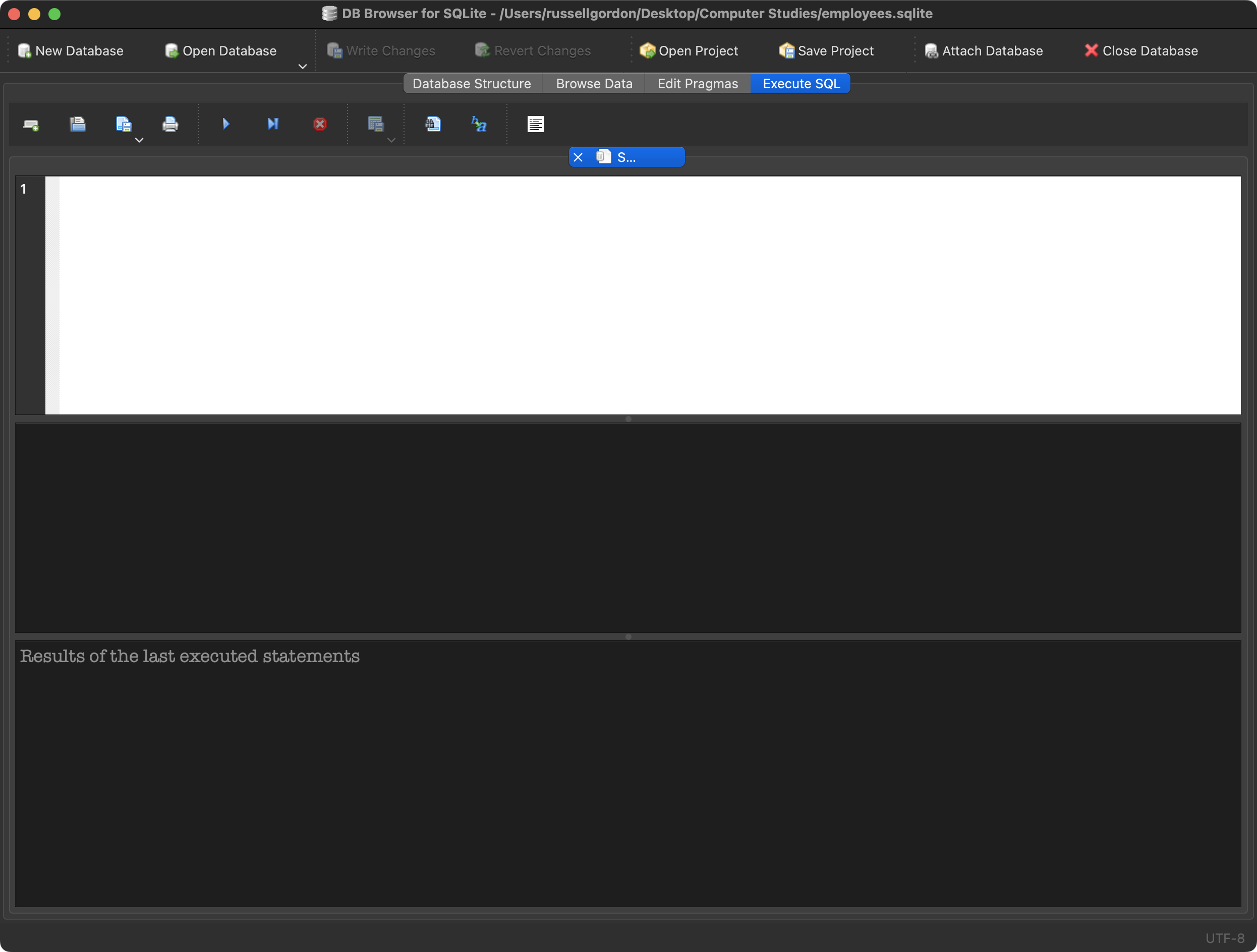
Select the Execute SQL tab, and you should see something like this:
TIP
At this point, you can optionally make some recommended configuration changes to DB Browser to change the fonts and colours it uses to display results.
Practicing with SQL
Now we are ready to start querying the database.
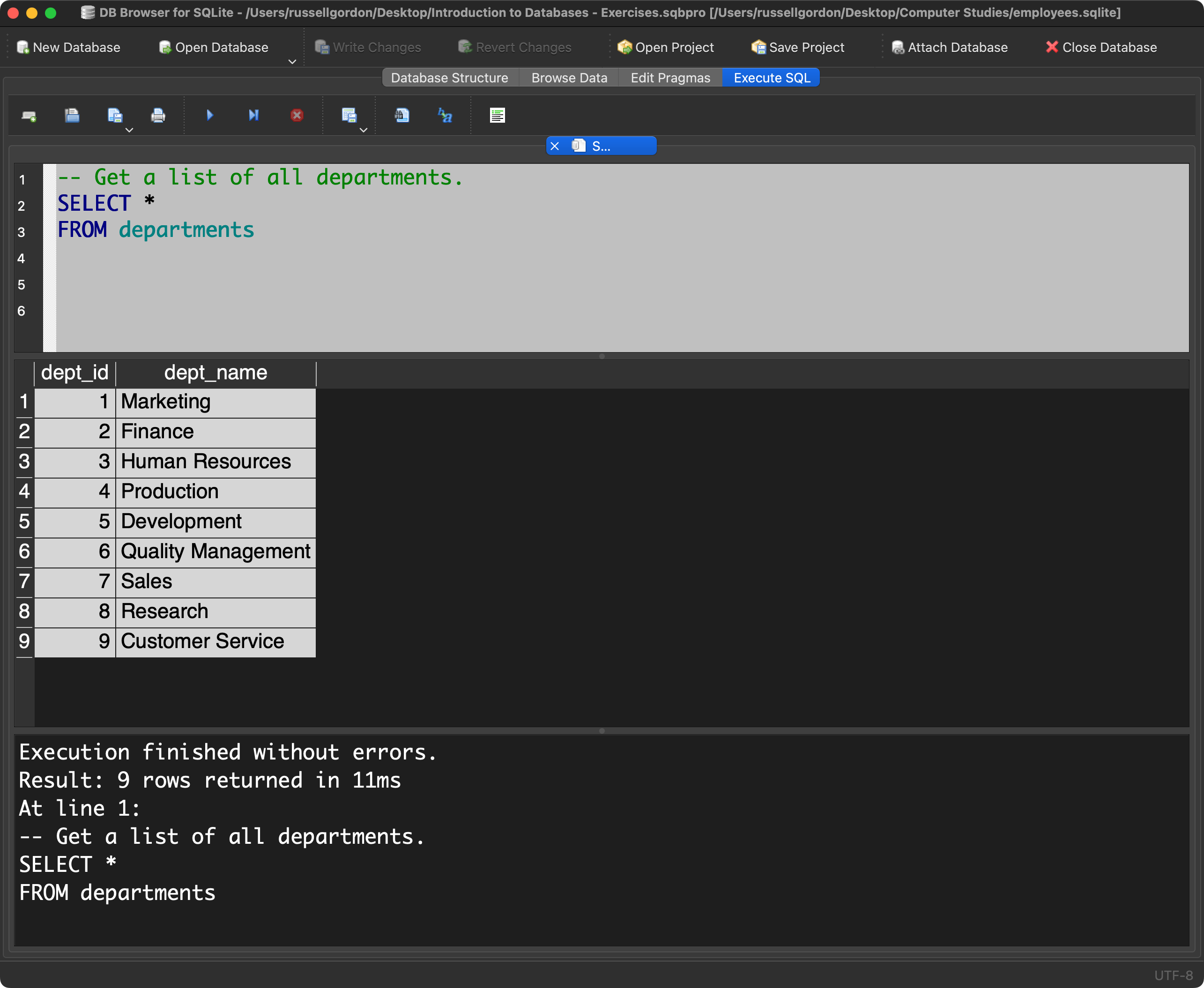
First, let’s see all of the departments within the company. Type the following query:
-- Get a list of all departments
SELECT *
FROM departments
You should see this result:
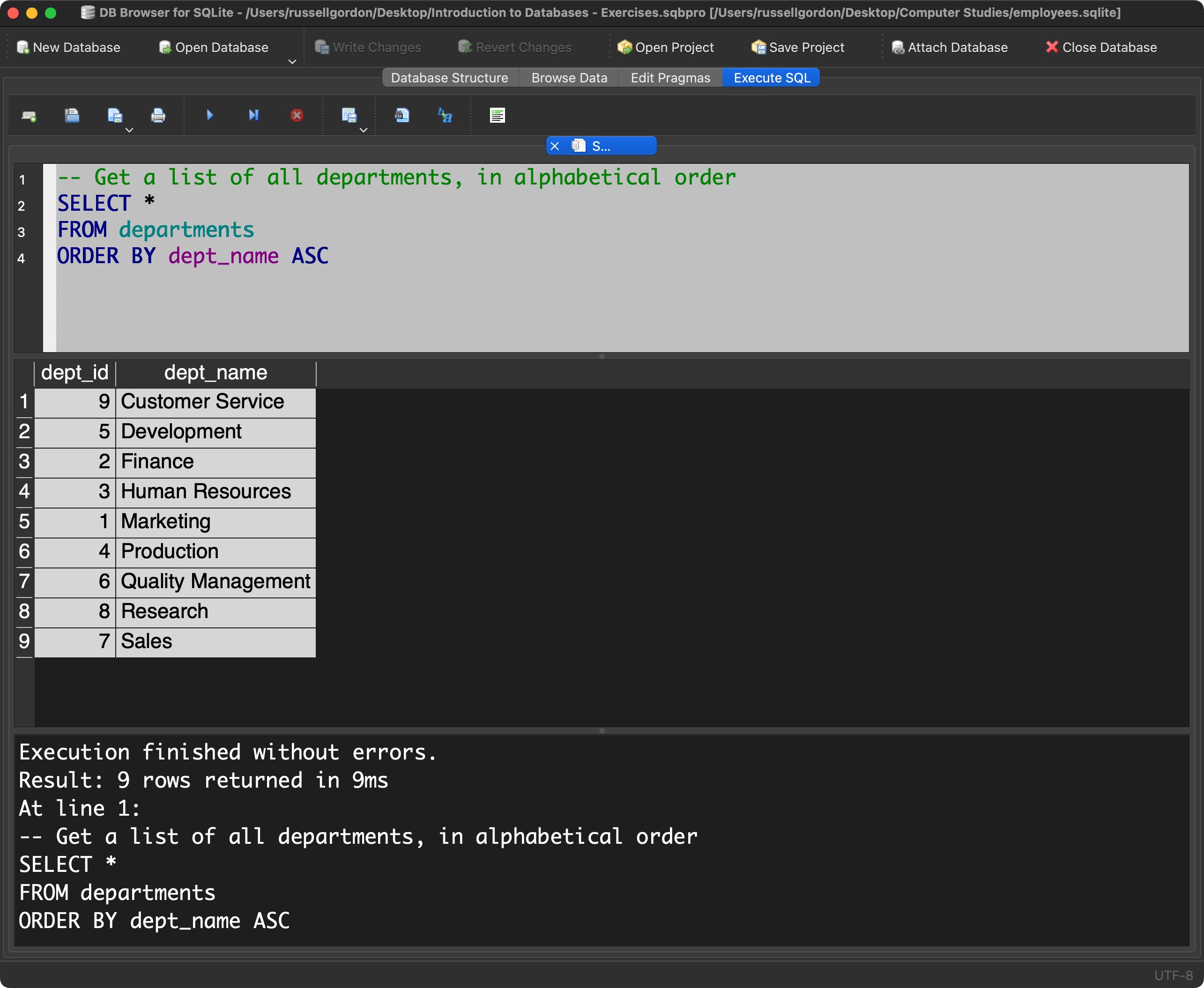
We can change the order that results are returned in:
-- Get a list of all departments, in alphabetical order
SELECT *
FROM departments
ORDER BY dept_name ASC
You should see this result:
TIP
Optionally, you may wish to review this page: